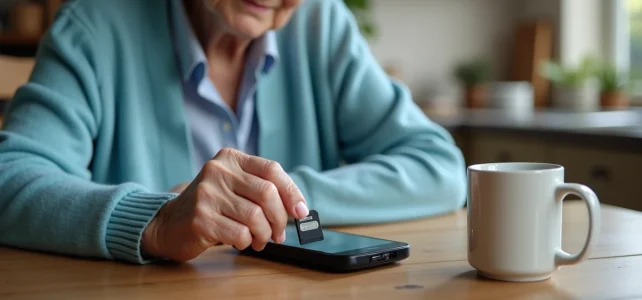
32 GB is no longer enough, but 128 GB can erase everything at once: the SD card on a Doro phone has never been a mere formality. Some models stubbornly refuse to start if the card is already inserted at the first power-up. Even when the manual promises “universal” compatibility, microSDHC cards sometimes show a grim face, and exceeding 32 GB can trigger a total wipe, without any warning.
From one model to another, the procedures vary and make any generic guide obsolete. On recent Doro models, there’s no way around it: you always have to lock the compartment with the back cover, while older models offer more leeway. Another source of hassle: low-end microSD cards can trigger repeated restarts or block contact saving. So, caution is advised before inserting any card.
What is an SD card used for on a Doro phone?
On a Doro phone, the question of storage never takes long to arise. Photos, videos, voice messages: the internal memory fills up far too quickly. Installing a microSD card allows you to keep your pictures without sacrificing everything. Videos, often large, find refuge there and free up space on the phone.
The SD card is also handy for file transfer. Moving a song or a document becomes child’s play, without having to connect the phone to a computer. Thanks to the pre-installed files app, it’s possible to check the remaining space on the microSD card at any time. A simple reflex that prevents you from getting stuck when trying to save new content.
However, it’s important to know that on a Doro phone, applications rarely migrate to the SD card. Therefore, adding a card is reserved for storing media files and documents. To learn about the specifics of each model, see the advice on Espace Senior: the page focuses on compatibilities and precautions to take for each device.
Here is a summary of the main uses of the SD card on a Doro phone:
- Archive and back up: photos, videos, music
- Free up internal memory for better performance
- Transfer files between phone and computer without hassle
Adopting an SD card is therefore about rethinking the management of Doro external storage, without losing the simplicity of daily use.
Compatibility: do all Doro models accept SD cards?
The question of Doro SD card compatibility does not have a universal answer. Each Doro phone has its own limits: internal architecture, software version, presence or absence of a dedicated slot. On the Doro 8050, for example, a microSD card up to 128 GB fits next to the Nano SIM. Other models, often older, impose a maximum capacity or require a specific formatting.
Before buying a card, it’s better to consult the phone’s technical manual. Generally, the microSD card must adopt the FAT32 or exFAT format. Some models require a class 10 or UHS-I card to ensure a smooth experience, especially when recording video or playing large files. With the EVA interface, detection usually occurs immediately upon insertion, but sometimes a software update is required to ensure perfect recognition.
Compatibility is not set in stone: a software update can improve detection or expand the list of recognized cards. If the card refuses to work or triggers error messages, Doro customer service can guide and help resolve formatting or compatibility issues. To check the details specific to each device, visiting the Doro official site remains the best option for obtaining reliable and up-to-date information.
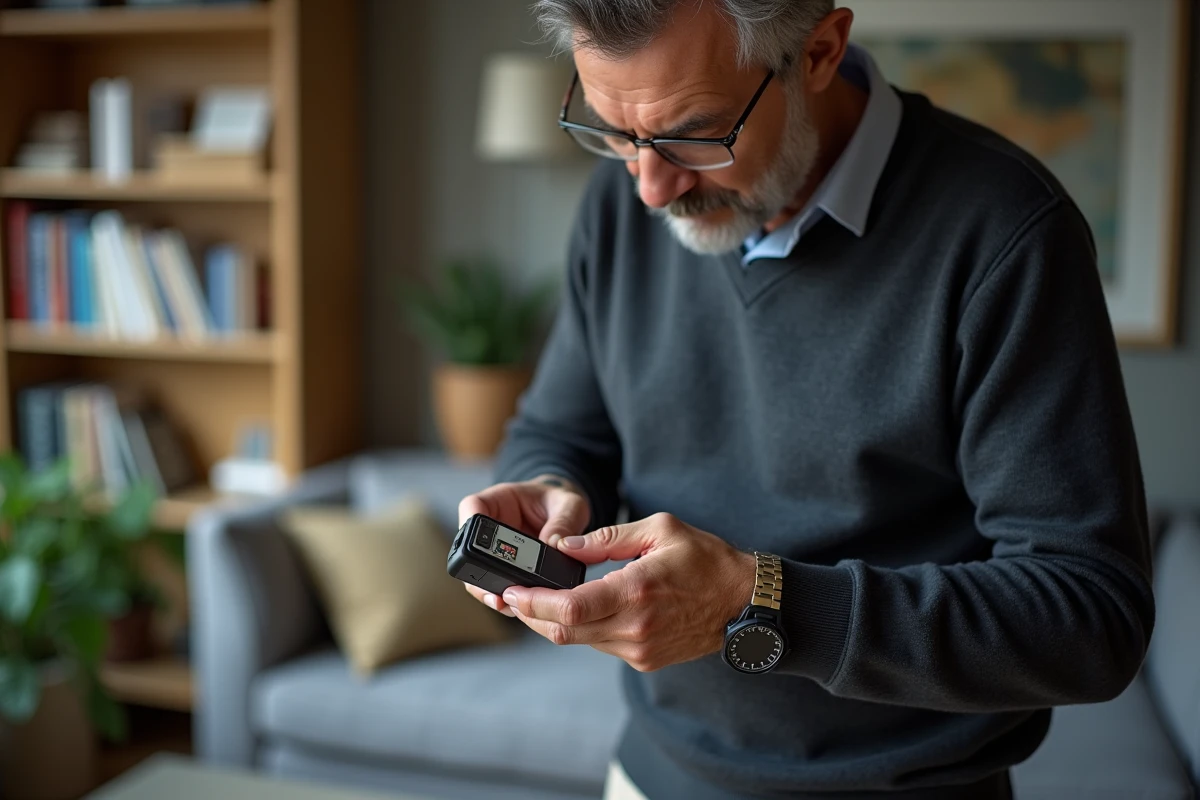
User manual: essential steps to insert an SD card safely
Inserting a microSD card into a Doro phone is primarily a matter of method. The user guide details the procedures, but a few additional precautions can prevent many inconveniences. Before starting, it is imperative to turn off the phone: cutting the power protects the components and preserves the data.
Gently open the back compartment. Locate the card slot, often next to the SIM. Orient the card according to the engraved design: just one wrong direction can damage the connectors. Insert the SD card without forcing it until it clicks into place, close it carefully, and then turn the device back on. The automatic detection usually occurs without delay. If the card is not recognized, a restart may help it appear.
For recent models or cards exceeding 32 GB, prior formatting in FAT32 or exFAT is sometimes necessary. If the memory is full or if the card is of poor quality, expect slowdowns or erratic detections. To check available space or ensure proper functioning, open the files app. The absence of a notification or the appearance of an error message generally indicates a poorly inserted or incompatible card.
Here are the gestures to remember to avoid unpleasant surprises when inserting or removing an SD card:
- Turn off the device before any manipulation.
- Check the format and capacity of the microSD card.
- Prefer class 10 or UHS-I cards for intensive use.
- In case of doubt, refer to the user guide or the Doro official site.
With each manipulation, it’s a balance: preserving your memories, avoiding unpleasant surprises, and keeping your Doro phone as reliable as on the first day.